
Reset a Forgotten Password
Completion requirements
If you have forgotten your Tabor Online password, you may be able to reset it using a verification method you have previously registered, such as a phone number or personal email address.
Reset your password
- Go to Tabor Online and select Log in.

- Enter your Tabor student email address. On the password screen, select Forgot my password or the available account recovery option.
- Enter your full Tabor student email address if requested, complete any security check shown, and select Next.
- Choose an available verification method you have previously registered. Follow the prompts to verify your identity. You may be asked to complete more than one verification step.
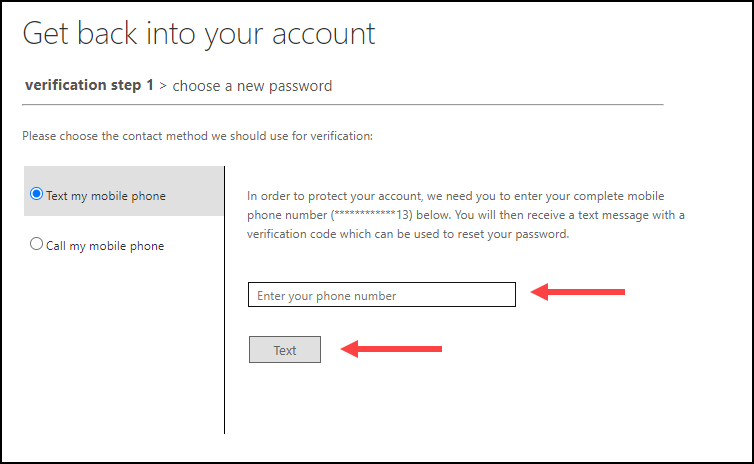
- Enter and confirm your new password, following the requirements shown, then select Finish or the equivalent button.
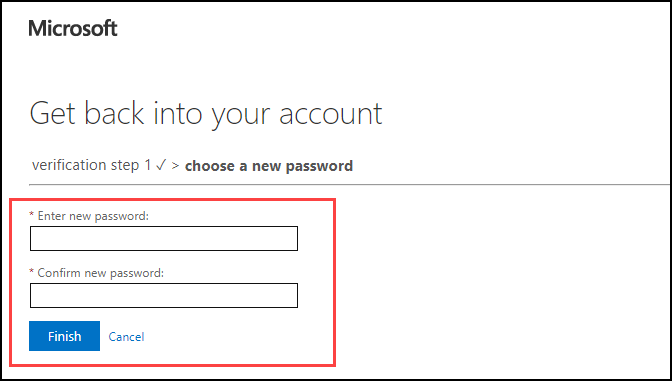
- Return to Tabor Online and sign in with your new password. If your browser or device saves passwords, update the saved password.
Unable to reset your password?
If you have not registered a recovery method, no longer have access to it, or cannot complete the reset, submit a Helpdesk ticket for assistance from DLIT. Include an alternative email address you can access so the team can contact you. Do not include your password or verification codes.