
Submit an Assignment
Submit your assignment through the assignment portal in your unit site. Before you begin, check the assessment instructions and due date in your Unit Outline (Description).
1. Find the assignment
- Open your unit in Tabor Online.
- Select the Assessments tile — the fourth purple essential tile — and open the portal for the correct assignment.
- Read the instructions and select Add submission.
2. Add your work
- Read the academic integrity declaration carefully. Tick the box to confirm that the declaration applies to your work.
- Under File submissions, drag your file into the upload area. Alternatively, select the Add file icon, choose Upload a file, select your file and then select Upload this file.
- Check that the correct file name appears. Add any other required files, then select Save changes.
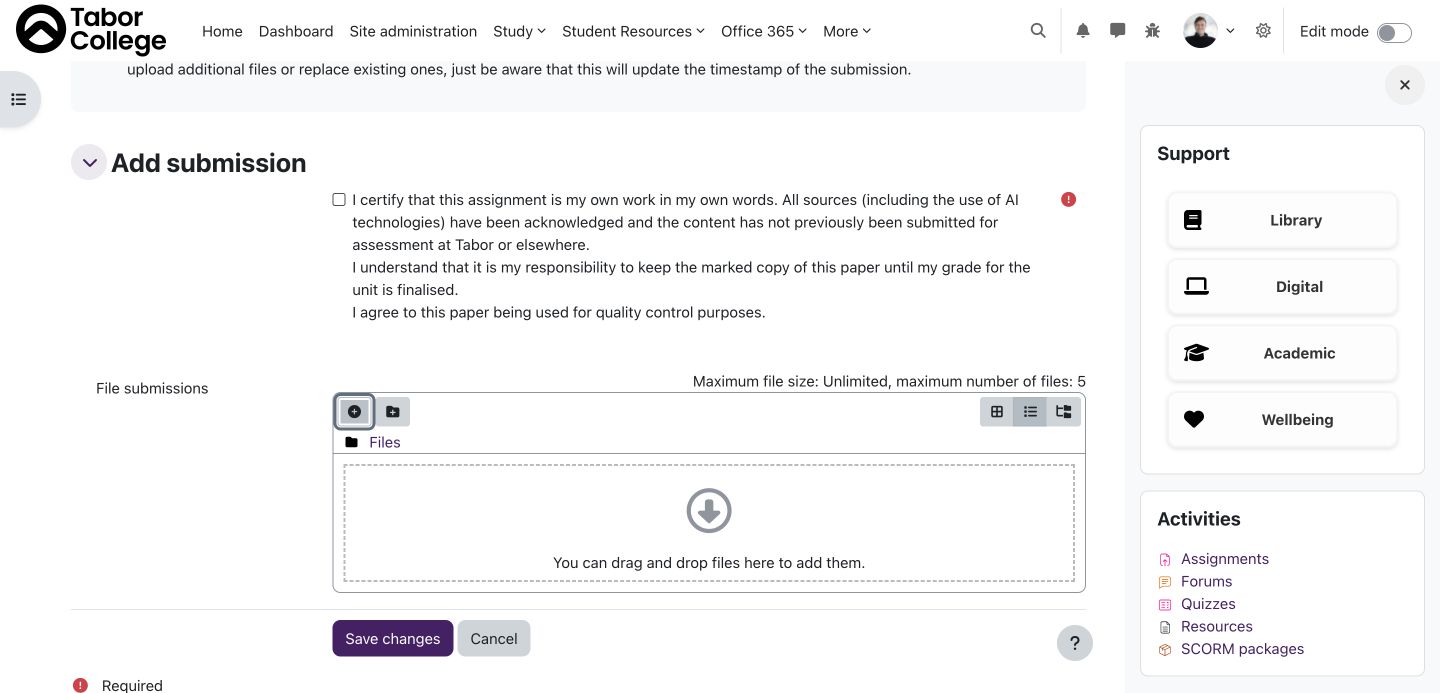
Example: the declaration and file upload area in a practice assignment.
3. Check your submission
After saving, check that the correct files are listed. If a Submit assignment button appears, select it and complete any confirmation steps.
Before you leave
Check that the Submission status shows Submitted for grading. A Draft has not been submitted: select Submit assignment and complete the confirmation. If the status or files do not look right, follow the instructions on the assignment page or submit a Helpdesk ticket.
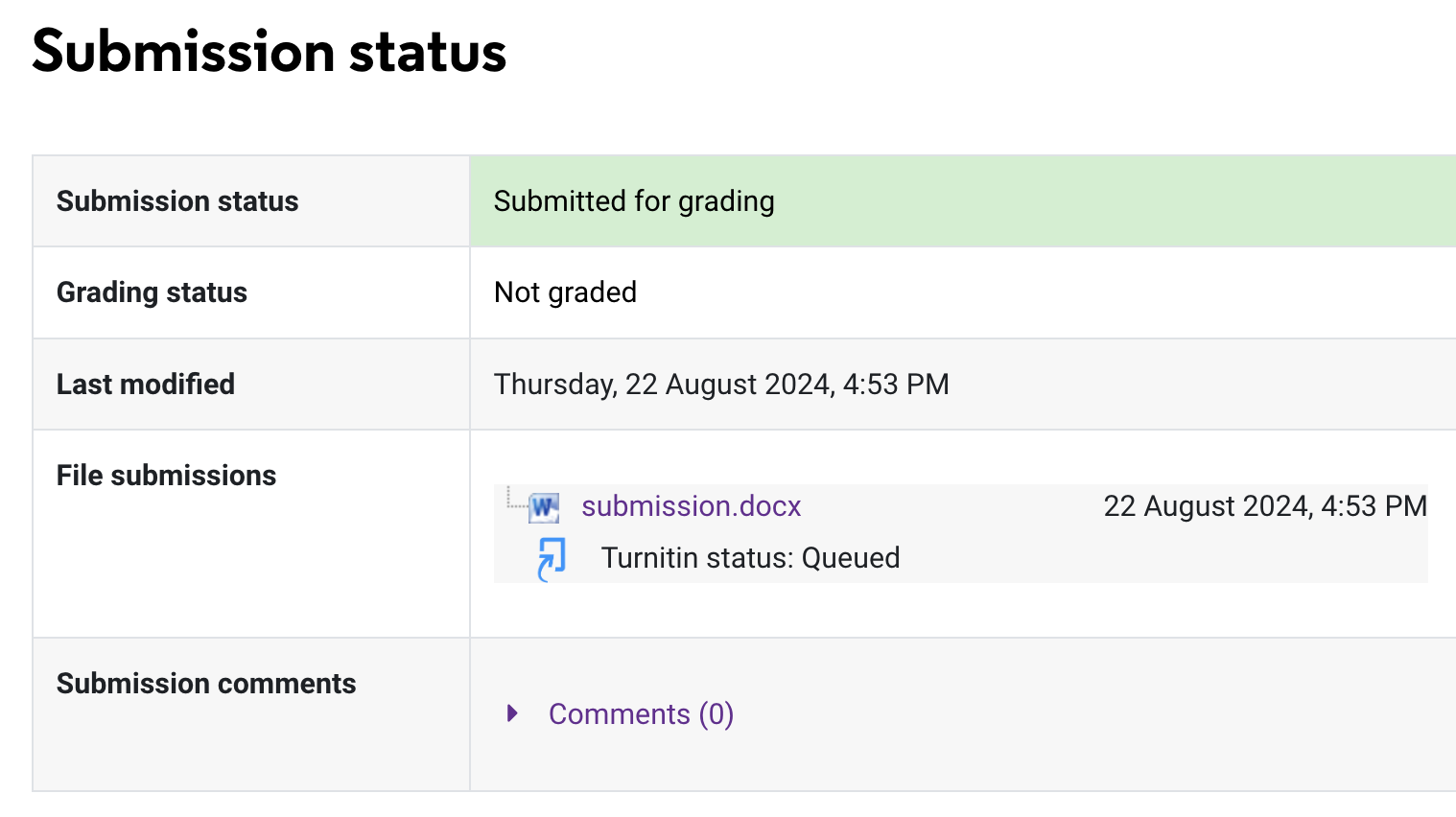
Example: a submission status showing Submitted for grading.
You can practise submitting an assignment in the Assignments section of the Introduction to Tabor Online and Tertiary Studies site. See the introduction site guide for help finding it.